Chat with your CoS
Your Chief of Staff (CoS) is Thout's built-in AI assistant. You can ask it anything about your meetings, actions, and workspaces — and it answers from what was actually said in your conversations. This guide covers every way to chat: globally, with a single meeting, or with a space.
Where you can chat in Thout
Chat is available in two surfaces that share the same conversation:
- Chat sidebar — a resizable panel docked on the right of your Meetings, Spaces, and other pages. Drag its left edge to resize it.
- Full-page chat — a dedicated page with more room. Click Expand to full page on the sidebar to open it, or Collapse to sidebar to dock it back.
Your conversation follows you between the two — if you expand or collapse while chatting, the same thread continues.
The three chat contexts
What the CoS knows depends on where you open the chat:
| Context | Where it opens | Header & placeholder |
|---|---|---|
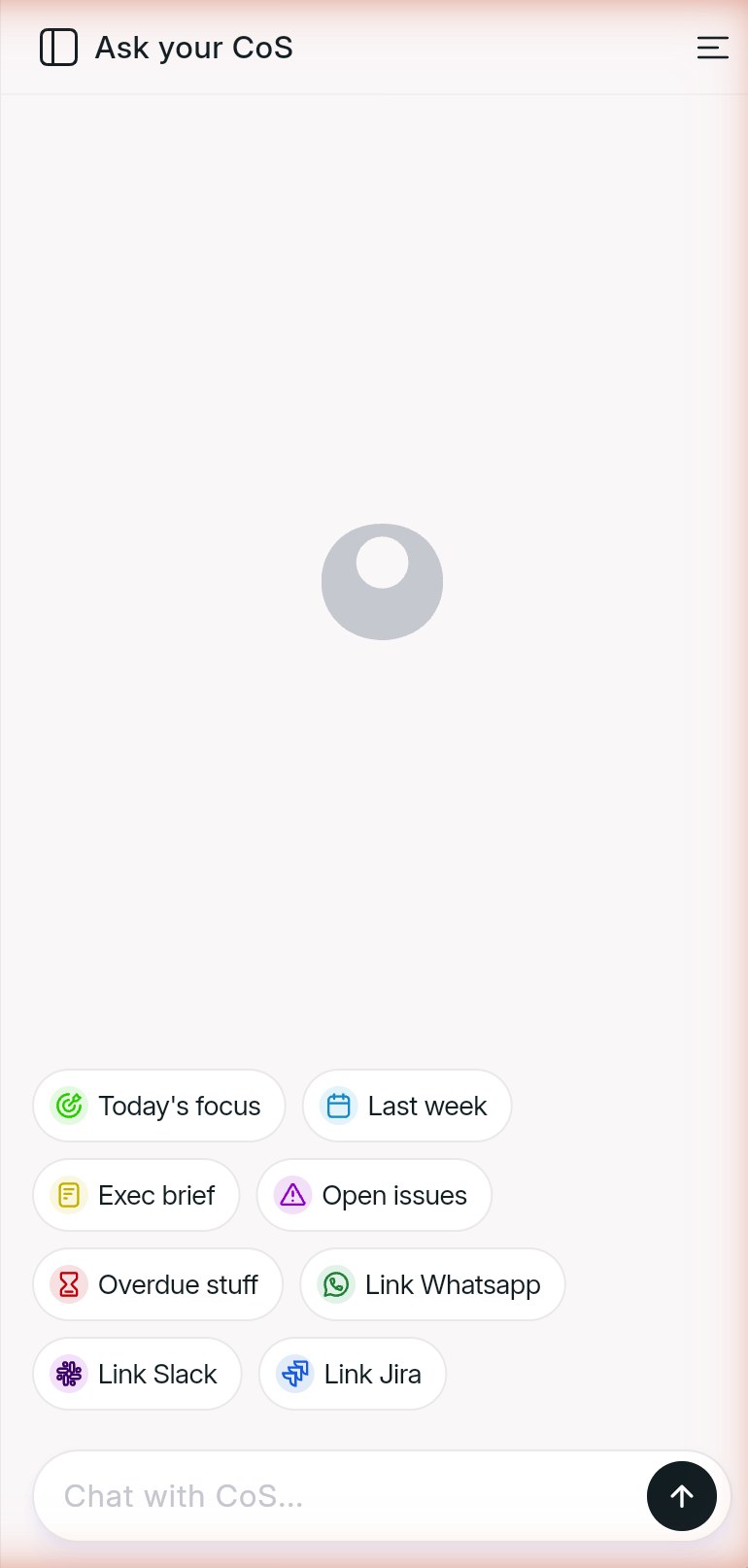
| CoS (global) | Meetings page, Spaces list, or the full-page chat | "Ask your CoS" · "Chat with CoS..." |
| Meeting | Inside any meeting's detail page | "Chat with [meeting name]" · "Chat with this meeting..." |
| Space | Inside any space | "Chat with [space name]" · "Chat with this space..." |
Note: the global CoS answers across all your meetings; meeting and space chats answer only from that meeting or space.
How to chat with your CoS
The global CoS chat can answer questions across all your meetings — action items, briefings, follow-ups, and more.
- Open the chat sidebar (on the Meetings page) or the full-page chat titled Ask your CoS.
- Type your question in the Chat with CoS... box, or tap a suggested prompt like Today's focus or Exec brief.
- Press Enter or click the send arrow. The send button stays disabled until you type something.
- Watch the reply stream in word by word. To interrupt it, click the stop button (the send arrow turns into a stop square while streaming).
Replies are formatted with headings, bullets, and bold text, and may end with follow-up suggestions. Use the copy icon under any message to copy it.
What's overdue across my meetings?
Overdue items (2)
- Packaging re-brief — owner Maya, due Tuesday.
- Distributor numbers — owner Jordan, due April 4.
Want me to draft a follow-up email for either?
Tip: you can ask things like "What can you help me with?" — the CoS will list what it can do: action items and tasks, meeting prep briefings, meeting insights, topic tracking, drafting emails from meeting context, and full intelligence briefings.
How to chat with a meeting
Meeting chat answers questions from a single meeting — what was decided, who owns what, and what risks came up.
- Go to Meetings and open any captured meeting.
- The right sidebar switches to Chat with [meeting name].
- Type in the Chat with this meeting... box, or tap a prompt: Key takeaways, Decisions made, Action items, Open questions, or Risks mentioned.
Chat with Spring launch review
Note: meeting chat sits next to the meeting's TL;DR, executive brief, and audio player — so you can verify any answer against the source.
How to chat with a space
Space chat answers across all the meetings collected in one space — useful for tracking a project or client over time.
- Go to Spaces and open a space.
- The right sidebar switches to Chat with [space name].
- Type in the Chat with this space... box, or tap a prompt: What needs attention, Momentum check, Risks & blockers, Next 7 days, or Key decisions.
Chat with Spring launch
4 meetings in this space
How to use suggested prompts
Suggested prompts are one-tap questions shown above the message box. Tap one to send it instantly — no typing needed. Each context has its own set:
| Context | Suggested prompts |
|---|---|
| CoS (global) | Today's focus · Last week · Exec brief · Open issues · Overdue stuff · Link Whatsapp · Link Jira |
| Meeting | Key takeaways · Decisions made · Action items · Open questions · Risks mentioned |
| Space | What needs attention · Momentum check · Risks & blockers · Next 7 days · Key decisions |
- Prompts hide while a reply is streaming and reappear when it finishes.
- Click the X button next to the message box to hide the suggestions; click it again to bring them back.
Note: replies can also include their own follow-up suggestions at the end — numbered ideas for what to ask next.
Related
How to view, search, and delete chat history
Every conversation is saved per context, so you can pick up where you left off.
- Click the Chat history icon in the top-right corner of any chat.
- The Chat history panel opens, with chats grouped by date (for example "Yesterday", "Jun 29, 2026").
- Use the Search chats box to filter by title.
- Click a chat to reopen it, or click the delete icon on a chat to remove it.
Chat history
Yesterday
Overdue items across meetings
CoSJun 29, 2026
Prepare Meeting: Packaging supplier call
CoS- Each entry shows the chat title and its scope tag (for example CoS).
- Meeting-prep conversations appear with titles like "Prepare Meeting: ...".
Related
Chat tips & FAQ
Why is the send button greyed out?
The send button is disabled while the message box is empty. Type anything and it activates.
How do I stop a reply that's still generating?
While a reply streams, the send arrow turns into a stop button — click it to cut the reply short.
Will I lose my chat if I navigate to another page?
No. The conversation carries over — for example, if you leave the full-page chat, the same thread continues in the chat sidebar, even while a reply is still streaming.
How do I copy an answer?
Click the copy icon shown under the message.
Can I make the chat sidebar bigger?
Yes — drag the divider on the sidebar's left edge to resize it, or click Expand to full page for maximum room.